Recent Posts

Friday, September 15, 2017

Android mobile all Call log and all messages disappeared - Solved

It was frustrating to have call log disappeared in my android mobile.

When i checked further my messages have disappeared.

Also I can see missed call in my android phone button but when i press the phone app to see the missed calls i could only see blank screen.

This was frustrating

After much research I found out my mobile has gone to Guest Mode some how..

To fix things back to normal again i did following:

setting->security-> and turn off "guest mode"

Viola ... everything works as normal now .. previously i have wasted resetting the phone to factory settings etc etc.. was too much frustrated ... 


Read more!

Monday, September 4, 2017

Configure Client Server in Domain Network connecting to router internet connection (Fix all DNS issues)

Known Issues while configuring the Domain in windows 2012 r2 and Setting up Client Computer and to make internet working:


  1. After installing Active directory , Domain Controller , DHCP in windows 2012 r2 there was issue connecting client computer to the domain – the client couldn't find the domain 
    • Solution : Change the Preferred DNS of client to Server IP and Connect to Domain
    • But now there is no internet in the client because Server DNS and Router DNS are two different things
    • To fix internet in Client – only option was to remove server ip from DNS settings in client and it will ultimately route to router and internet will work.
      • But again there is problem with the client. Since the DNS of serve r is not Known and it will be looking into Public DNS for its internal Domain, the initial log in of the client computers were taking ages to log in (more than 10 mins for some
  2. After configuring Mikrotik Router both have DHCP running and the laptops running under wi-fi were distributed different IP by router and in Lan computers ip was distributed through Windows Server 2012 DHCP 
    • Problem was there were number of times ip-conflict scenario was appearing.


To Fix all this issues after many blog posts and trial and errors, I have come up with the permanent fix. 

Server Setup – (Windows 2012 R2 Server)

  1. Install Windows 2012 R2 Server – Active Directory, Domain Controllers, DHCP 
  2. Give server IP address – In my case it was 192.168.1.160 (say)  - So your DNS, DHCP and AD has same ip in the Server
  3. In Server adapter :
    • Ip Address will be : 192.168.1.160
    • Subnet Mask auto populate
    • Default Gateway will be your router Address in my case it is (192.168.1.1)
    • Preferred DNS same as own IP address: 192.168.1.160
    • Alternate DNS : Keep public IP in case your server couldn't resolve some DNS names : 8.8.8.8
    • Now Internet should be working in your Server, if not then check your router unless the internet is working on server don’t proceed 


Client Setup - (Windows 7)

  1. I am connecting to server using Windows 7
  2. Since if you don't put the ip of the Server in DNS of client it may not find your domain 
  3. So first open Network and sharing
  4. Change Adapter Settings
  5. Enter Preferred DNS Server as Server IP –192.168.1.160
  6. Go to Computer- Properties -Change Settings 
  7. To rename this computer or change the domain - click Change
  8. Enter fully qualified domain name (FQDN) on the domain and click ok
  9. The computer will join the domain – Restart the computer 
  10. Now Client Adapter settings look simple no complications 
Now Check Internet and mapped drives in your Client computer

  1. Mapped drives should work 
  2. Internet Not working
    • Now In this case your client PC is configured to point to your local DNS server (192.168.1.160) 
    • It has reached the server but it couldn't forward request to public DNS so it is stuck there and thus no internet
    • To Forward DNS you need to change small setting in your Server
Windows 2012 R2 Server – Forward DNS to make internet working in client computer

  • Go to Server Manager
  • Select DNS
  • Right click the DNS IP and open DNS Manager
  • Right click the server and click Properties
  • Check Interfaces tab which should only listen to your server IP address – 192.168.1.160

  • Now Click on Forwarders – Here you might see 192.168.1.1 that is incorrect , it must forward your requests to either your ISP DNS address or public domain then only your client can resolve the domain and thus internet works.
  • Delete the 192.168.1.1 entry which is not resolving anything
  • Enter DNS provided by your ISP or just enter public IP (8.8.8.8) it doesn't matter if both are present (settings pic below)
  • Now Press ok and check your client – internet must be flowing in …. Happy chappy


Read more!

Sunday, May 21, 2017

Brother Printer refilling toner - Still showing replace toner message (fix)


After brother printer ink is finished then it shows toner low message.
You have got option to pull out the toner and refill it manually and put the toner back again.

Still after you put the refilled toner it still shows the toner low message and rejects to print normally.

For this there is a simple hack that can be applied to the printer and it should be fixed.

The steps to do after you refill the toner and insert it in brother printer are :

Brother toner Replace setting
  1. Open the front cover where the cartridge is placed 
  2. Press clear
  3. Press start
      1. (Note: the screen should go blank)
  4. Press '+' 12 times
  5. Press 'ok'
  6. Close the cover/door
Now Your printer should work normally... enjoy


Read more!

Tuesday, September 15, 2015

How to implement logging in database table and log file using NLog in C#

NLog is a .Net Library that is very useful for logging program information. It delivers various features of logging error-free. NLog allows users to write the logs to various outputs some of the most helpful are: a File text console email message database event log and many more For the full article please follow my personal blog post "How to implement logging in database table and log file using NLog in C# "


Read more!

Tuesday, August 18, 2015

Cannot implicitly convert type 'Google.Apis.Drive.v2.Data.File' to 'System.IO.File' - Resolved C#.net Code


I was using Google Drive API go get File Name of the stored file in Google drive

Although following the sample code provided by Google I encountered following error:

Cannot implicitly convert type 'Google.Apis.Drive.v2.Data.File' to 'System.IO.File'. I was surprised to find there were not much written about this.

I thought it would be a small but helpful post to some. Instead of wasting  precious time you can just do following to resolve this issue:


  1. If you are using System.IO in your program, then it will first pickup System.IO.File and ignore the Google.Apis.Drive.v2.Data.File.
  2. Therefore to resolve this issue you need to give full path of the Google Drive File
  • For Eg:
        Google.Apis.Drive.v2.Data.File file = service.Files.Get(fileId).Execute();
            Console.WriteLine("Title: " + file.Title);
              Console.WriteLine("Description: " + file.Description);
                Console.WriteLine("MIME type: " + file.MimeType);

        Hope this helps, Enjoy coding guys........


        Read more!

        Sunday, August 2, 2015

        XAMPP Error - Apache shutdown unexpectedly - This may be due to a blocked port (Solved)

        I was having the problem restarting Apache using XAMPP in Windows 7. Every-time I start Apache there was an error popping up. I had a solution to change the port to 8080 but that was not what i was looking for i was looking for solution that should work without changing anything in the config and work as normal.

        Following was the error appearing in my XAMPP:
        Error: Apache shutdown unexpectedly.
        8:33:18 PM  [Apache] This may be due to a blocked port, missing dependencies, 
        8:33:18 PM  [Apache] improper privileges, a crash, or a shutdown by another method.
        8:33:18 PM  [Apache] Press the Logs button to view error logs and check
        8:33:18 PM  [Apache] the Windows Event Viewer for more clues
        8:33:18 PM  [Apache] If you need more help, copy and post this
        8:33:18 PM  [Apache] entire log window on the forums
        So I was looking for the solution all over the place and finally i figured it out.

        1.  Figure out what applications are using port 80 and if there are not crucial applications that are using port 80 then you can free the port for XAMPP to use it. 
          • First open cmd as Administrator -- do this by typing cmd in search bar and right click cmd.exe and run as Administrator
          • Enter netstat -aon | findstr :80 to find all the necessary applications that are using port 80.
        2. Now to free up the port 80 type in : net stop http 
        3. It will ask permission to stop the applications that are using up port 80, Just type Yes 
        4. Now run Apache in XAMPP -- this should solve the problem and now Apache is up and running...
        Important: Skype uses port 80 by default, you can change this in skype options > advanced > connection - and uncheck "use port 80"

        Reference: 


        Read more!

        Tuesday, July 28, 2015

        Cannot start apache from xampp on windows 7 due to ports blocked (fixed)

        In my Windows 7 i had installed .net and so IIS was running and therefore it was normally using up the port 80 and therefore any other trying to work on port 80 was rejected.
        I had this issue while I tried to restart Apache server from xampp it was always giving error saying access to the port was denied.

        To avoid this issue I had to search the web every time i open up xampp. To fix this problem i have decided to write up this blog post that covers the solution of the issue:

        Problems running XAMPP while running IIS. If you are running IIS it might be worth stopping the service then starting XAMPP.

        If you just want to make Apache run an don't mind which port it is running on, do the following:

        1. In the XAMPP Control Panel, click on the Apache - 'Config' button which is located next to the 'Logs' button.

        2. Select 'Apache (httpd.conf)' from the drop down. (notepad should open)

        3. Do Ctrl + F to find '80'. Click 'find next' three times and change line Listen 80 to Listen 8080

        4. Click 'find next' again a couple times until you see line ServerName localhost:80 change this 
        to ServerName localhost:8080

        5. Do Ctrl + S to save and then exit notepad.

        6. Start up Apache again in the XAMPP Control Panel, Apache should successfully run.

        7. Use http://localhost:8080/ in your browser address bar to check everything is working.

        Thanks to Afroman in the stackoverflow comment : http://stackoverflow.com/questions/14245474/apache-wont-run-in-xampp


        Read more!

        Friday, July 24, 2015

        How to use multiple Kendo UI Grid MVC in single view page that has export facility using free version

        Kendo UI for MVC is paid version and since i was exploring the free version of the Kendo UI grid in MVC. I figured out this code that grabs data from the controller and displays multiple grid in the view and can export data from both the grids to excel with desired file name.

        To do this I am not going to show how you are going to grab the data from the database but i will only display the controller code and the view code...
        ... 1. First of all include the .js and .css file in _Layout.cshtml page
        2. Controller code
                1. First thing is to reference DocumentFormat.OpenXml.Packaging you can install it via NuGet Packages (right click on your solution and select Manage NuGet Packages and search for DocumentFomat.OpenXML and install it.


        2. Next thing to note is you must return the view else if you just return the data then it will only display json result on the screen


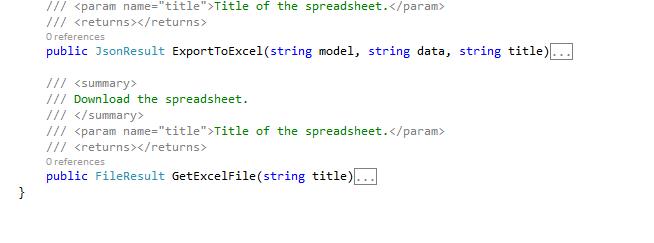
                 3. Return json result for the data for two grids I have GetCars and GetOtherCars here in my code
               4. Now insert the code to render the excel file (full code is found in the full working project attached at the bottom of this blog post)
               5. Now in the View (Index.cshtml) insert two grids where you should note is disable odata and mention excel export (full code is found in the full working project attached at the bottom of this blog post)
                                   //  type: "odata",


        Download Full Source code to display multiple Kendo UI MVC Grid in same View page using free version of Kendo UI


        Read more!

        Loading bar is not displayed in kendo UI grid while not setting default height

        When i removed the default height of Kendo UI Grid to "Increase the height of kendo UI grid to full page to display all records of grid" I faced another problem.

        The loading image in Kendo UI grid was not displaying and the grid initially collapsed. This created the impression that the Kendo UI Grid was not loading at all so there was a great chance that users were distracted from the page.

        To fix this issue I figured out just place one css code mentioned below that sets the min height of the grid so the Kendo UI grid displays the loading bar and after the data is loaded everything is all good..

        Css Code to set min height of the Kendo Ui Grid is as follows:
          .k-grid-content {
                /*For setting min height to see the loader so that user are not distracted if the grid is loading or not*/
            min-height: 200px;
        }


        Read more!

        Increase the height of kendo UI grid to full page to display all records of grid

        First of Kendo UI grid is set to fixed height and when you have enabled paging then say it will show 5,10,15 or All records when selecting on the drop down list.

        When we select the number from the list and the records are more than the height of the grid then the records move inside the scroll bar which was not my option for the grid.

        I wanted to display all the records without the scroll bar appearing and expand the grid to show all the records selected without the scroll bar. Say if i select "All" then the grid should expand vertically to full length of the page.

        To achieve this you must do following for your grid
        1. Remove the height of the grid
           _grid = $("#grid").kendoExcelGrid({
                       // height: $(document).height()-100,
        2. Since the grid should expand and contract based on the number of rows we don't need vertical scroll bar to do this use the following css:
        #grid .k-grid-header
            {
              padding: 0 !important;
            }

            #grid .k-grid-content
            {
                /*don't show the disabled scollbar at the right to make grid look clean*/
                overflow-y: visible;
            }
        Now you are able to expand Kendo UI grid vertically when you select all records


        Read more!

        Thursday, July 23, 2015

        How to Find the Wi-Fi Password of your Current Network


        Sometimes you forget your own wi-fi password when it has been setup for very long time in the past and it would be very uncomfortable if someone asks for password to connect to their mobile and you say "mmm I don't remember".

        I have forgotten wi-fi password for many time and this situation has come to me many times.

        Now i luckily found out the blog by Amit Agrawal (thanks to him) that has solved this problem.

        To Find the Wi-Fi password on windows do following 


        1. Go to Start and type cmd on search and when cmd.exe appears right click and click Run as Administrator
        2. Type the following text: netsh wlan show profile name=myWLan key=clear
        3. Then press Enter and you will see your password in the field called Key Content

        ( "myWLan" is the Wi-Fi network you are connected in)

        For more.. and lean how to retrieve wi-fi password in MAC please refer to Amit's Blog in following link:
        http://www.labnol.org/software/find-wi-fi-network-password/28949/


        Read more!

        Tuesday, March 26, 2013

        How to extract Sharepoint list using SQL Query

        I was searching for Sql query to be able to extract the list from Sharepoint database and found a good link that helped me fix the issue

        Querying Sharepoint List Item Versions using SQL

        Which actually gives the info on list and full sql query to get the list is here:
        Hope this helps... enjoy


        Declare @ListID as uniqueidentifier

        SET @ListID =(SELECT tp_id FROM dbo.AllLists WHERE tp_title ='New User Request')
           --select @ListID
           
           
        SELECT      dbo.UserData.tp_ID,
          dbo.UserData.tp_ListId,
          dbo.UserData.tp_Author,
          dbo.UserData.nvarchar1,
                        dbo.UserData.nvarchar2,
          dbo.UserData.nvarchar3,
          dbo.UserData.nvarchar4,
          dbo.UserData.nvarchar5,
                        dbo.UserData.nvarchar6,
          dbo.UserData.nvarchar7,
          dbo.UserData.nvarchar8,
          dbo.UserData.nvarchar9 ,
                        dbo.UserData.nvarchar10,
          dbo.UserData.nvarchar11,
          dbo.UserData.nvarchar12,
          dbo.UserData.*                  --dont forget to modify this to snatch only the columns you need
        FROM            dbo.Lists
        INNER JOIN
                        dbo.UserData ON dbo.Lists.tp_ID = dbo.UserData.tp_ListId
                       
                       
        WHERE  
        (dbo.UserData.tp_ListId =@ListID)


        Read more!

        Monday, February 4, 2013

        Get Legitimate Photoshop for free from Adobe itself right here


        Guys, I found out that Adobe is giving its older version of Adobe Photoshop CS2 and all contents within creative suite for free.

        It is good for Photoshop learners who just want to learn and trial it out and not go into advanced functions which obviously if they think they need it can purchase latest version of Photoshop.

        This is way good for the students learning Photoshop and who are tired of using free crappy photo software.

        Here you go guys get your free copy from the ADOBE DOWNLOADS website, all you need to have is Adobe free Account which you don't mind creating to get a free copy. Enjoy happily........ 


        Read more!

        Wednesday, January 30, 2013

        Fix for An unexpected error occurred while searching for plugins in Wordpress site hosted locally in Wamp server.

        I came across unusual error while trying to install the plugins in wordpress development site hosted locally in Wamp server within our company network:

        The error said:
        “An unexpected error occurred. Something may be wrong with WordPress.org or this server’s configuration. If you continue to have problems, please try the support forums”

        It was few hours search which directed me to change the timeout in httpconfig.php and others as well and I tried all of them and finally I found out the blog to fix it which was:


        The main culprit of the issue was the “proxy” being used for the connection within our company.

        To get around the proxy we need to enter the proxy information in wp-config.php as below as mentioned in above link.

        If the problem is happening when you search plugins or themes its probably because your connected to a proxy and you need to configure it on your wp-config.php
        /** EXAMPLE - proxy settings */
        define('WP_PROXY_HOST', 'proxy.url.com');
        define('WP_PROXY_PORT', '1234');
        define('WP_PROXY_USERNAME', '');
        define('WP_PROXY_PASSWORD', '');
        define('WP_PROXY_BYPASS_HOSTS', 'localhost');
        Thanks to mario.andrade


        Read more!

        Wednesday, January 16, 2013

        Using Entity Framework Code First and ASP.NET Membership Together A great article by Imar Spaanjaars

        I was stuck when Asp membership tables were being deleted when working on Entity Framework code First approach and by looking around got hold of this great article that explained and fixed the exact problem i was having.

        The link is below for the guys who are still searching for the fix. 

        Using Entity Framework Code First and ASP.NET Membership Together

        Some time ago I was involved as a software designer and developer in an MVC 3 project that used Entity Framework Code First 4.1 in a repository layer. During development we postponed dealing with security as requirements were pretty simple (simple logons with a single Administrators role plus the requirement that users should only be able to see their own data). When we were close to deployment, we ran the aspnet_regsql tool against the database that EF had created for us to create the SQL schema and data that the Application Services such as Membership and Roles require. We also added an additional userName parameter to a Get method in the repository to filter records for the currently logged in user. Finally, we added Authorize attributes to a number of controllers to make sure they are only accessible for users that are logged in. We then deployed the application and database, created a number of users using the MvcMembership section we had added to the site, and announced the presence of the site. All of this worked great, but we ran into issues when started work on the next version of the application.


        Read more!

        Wednesday, October 24, 2012

        .vbproj cannot be opened for web projects created in VS 2005 after installing later versions of Visual Studio - Fixed

        I just don't want to waste your time and come to conclusion on how this can be fixed so that you can focus on work rather than searching for google and scrolling through the blog posts.

         To fix this i downloaded and installed following components


         1. Download VS80sp1-KB926601-X86-ENU.exe from Micrsoft download page or from direct link below and install it :


         http://download.microsoft.com/download/6/3/c/63c69e5d-74c9-48ea-b905-30ac3831f288/VS80sp1-KB926601-X86-ENU.exe


         AND


         2. Download http://download.microsoft.com/download/9/0/6/906064ce-0bd1-4328-af40-49dca1aef87c/WebApplicationProjectSetup.msi from Microsoft download page or from direct link below and install it:

          http://download.microsoft.com/download/9/0/6/906064ce-0bd1-4328-af40-49dca1aef87c/WebApplicationProjectSetup.msi


        This should fix your problem........Enjoy Coding !!!


        Read more!

        Wednesday, August 22, 2012

        How to include people picker in Microsoft infopath 2010 (Step by Step)

        I have started working on InfoPath 2010 and since it is new to me I was looking for ways to work with the People Picker control in Microsoft infopath 2010 so that it picks up the employee information from the Sharepoint server and that will in-turn provides people information that is stored in active directory.

        So in this hunt of articles for me to help I found this brilliant article on the web called: Creating a people picker form in InfoPath 2010 by Alan

        So I couldn't resist the article and published it here as well, hope he doesn't mind as i have used all his screenshots

        Duty Swap

        We decided to go with the duty swap form to start with, its currently a paper form that staff complete when they swap a duty with someone. The paper form is supposed to be a reminder that the swap has taken place and a copy goes to the duty team leader
        Let me show you the finished article and then I can explain each step.
        image

        Creating The Form

        Open InfoPath, in my case its InfoPath 2010
        image
        Select SharePoint Form Library and click Design Form
        image
        You can now edit all the headings etc to suit your needs and then lets add a people picker control and text box

        Adding Controls

        To access the controls, expand the control section on the menu bar and select them from the list
        image
        Your screen will now look like this
        image
        On the right hand side you will now have a list of the fields you have just added, however they are not named very well
        image
        Double click the field heading and change the names to something relevant
        image

        Testing The Form

        With these two controls added we can test the form, to do this click on the Preview button at the end of the ribbon
        image
        If you type into the people picker control however, you will get an error
        image
        This is because the control has nothing to talk to. During runtime it will talk to the SharePoint site the form is published to and use the user profiles service to retrieve users details. To overcome this issue while we design the form we need to tell it the URL of the SharePoint site. To do this double click on the people picker control and select Control Properties
        image
        Click on the SharePoint Server tab and enter the address of the server
        image
        Now when you preview you the form it will return the username
        image

        Creating A Formula

        We now need to fill in the text box with the email address of the user. This is going to require a formula to take details from the people picker control
        If you look at the people picker control it pulls through the following data
        • DisplayName
        • AccountId
        • AccountType

        We can use the AccountId to produce the email address, if you use InfoPath to complete the form you can use the AccountId to send the email but we are going to fill the form in using a web browser so we need to produce a full email address.
        Double click on the text box control and select control properties from the ribbon
        image
        Click on the fx button
        The AccountId will be returned from the system in the format of domain\username we need to take this and use just the username to add to the email address. For this we will need to use two functions
        • substring-after – This function looks at the AccountId field and only uses the text after the \
        • concat – This function concatenates (joins together) the selected text from the AccountId and the rest of the email address

        Here is the code and as it should appear on the screen
        concat(substring-after(AccountId, "\"), "@westhatch.essex.sch.uk")
        image
        So now lets see what happens when we use the people picker to search for a user
        image

        Submit The Form

        Our form now has enough information in it for it to be submitted to someone by email. In this example it will be setup to submit an active view of the form to the user selected in the people picker
        To do this we need to create a data connection to submit the form
        From the ribbon select the Data tab and then click on To E-mail
        image
        Click on the function key next to the To: text box
        image
        Click on Insert Field or Group and select the text box field that will contain the email address
        image
        Select the option to send only the active view of the form
        image
        Give the data connection a name and then click Finish
        image
        Now lets preview the form again only this time click Submit once you have selected someone in the people picker
        image
        Once you click on Submit you should receive an email with the active view of your form like the one below
        image
        So we have a form that will allow the user to find people from within the organisation and then submit the form as an email to that user. That’s great but it doesn’t really do anything else. Part 2 of this series will add more controls and as well as submit the form as an email will save the data to SharePoint for further analysis.

        Thanks Alan can't wait for your part 2 and if i figure this out then I will try to post the part 2 version of this asap.

        Cheers


        Read more!

        Thursday, August 16, 2012

        Easy Data access Class for .Net applications

        This code can be used for SQL data inserts or to retrieve information from database.

         I hope this will make a lot of people's life easy
        This class dbhelper will provide full code to open or close the databases, execute any sql commands retrieve dataset or data rows.

        It also covers all the transaction based or transaction less connection including ODBC, OLEDB or SQL connection types.
        This code can be the base for VB.net class for the extensions further and please note this class doesn't have error handling as desired and it is expected that user can add error handling as per their errorhandler logic.

        Full code is below:


        Imports System.Data.Odbc
        Imports System.Data.SqlClient 
        Imports System.Data.OleDb 
        Imports Info 

        Public Class DBHelper     

          Dim oConn As OdbcConnection     
          Dim sConn As SqlConnection     
          Dim olConn As OleDbConnection     
          Dim oCmd As OdbcCommand     
          Dim sCmd As SqlCommand     
          Dim olCmd As OleDbCommand     
          Dim isTran As Boolean     

          Private oTrans As OdbcTransaction     
          Private sTrans As SqlTransaction     
          Private olTrans As OleDbTransaction     
          Dim connStr As String     
          Dim strDBConfFile = "C:\Temp\DBConfig.ini"     
          Dim ISODBC As Boolean     
          Dim ISOLEDB As Boolean     
          Dim ISSQL As Boolean     

        'Open connection to database 
          Public Function Connect() As Boolean         
            If ISODBC Then             
               If oConn Is Nothing Then                 
                  oConn = New OdbcConnection(connStr)             
               End If             
               If oConn.State = ConnectionState.Closed Then                 
                  oConn.Open()             
               End If         
            ElseIf ISOLEDB Then             
               If olConn Is Nothing Then                 
                  olConn = New OleDbConnection(connStr)             
               End If             
               If olConn.State = ConnectionState.Closed Then     
                    olConn.Open()             
               End If         
            Else             
               If sConn Is Nothing Then                 
                  sConn = New SqlConnection(connStr)             
               End If             
               If sConn.State = ConnectionState.Closed Then                 
                  sConn.Open()             
               End If         
            End If     

        End Function 

        Public Sub BeginTransactionWithLock()          
           'Begin transaction and keep lock on the tables
           If isTran Then Return         
              If ISODBC Then             
                 If oConn.State = ConnectionState.Closed Then
                    oConn.Open()             
                 End If             
                oTrans = oConn.BeginTransaction(IsolationLevel.Serializable)               
                isTran = True         
             ElseIf ISOLEDB Then             
                If olConn.State = ConnectionState.Closed Then                 
                    olConn.Open()             
                End If             
                olTrans = olConn.BeginTransaction(IsolationLevel.Serializable)             
                isTran = True         
             Else             
                If sConn.State = ConnectionState.Closed Then                 
                    sConn.Open()             
                End If             
                sTrans = sConn.BeginTransaction(IsolationLevel.Serializable)             
                isTran = True         
             End If     
        End Sub     

        'Begin transaction 
        Public Sub BeginTransaction()         
           If isTran Then 
             Return         
              If ISODBC Then             
                If oConn.State = ConnectionState.Closed Then                 
                   oConn.Open()             
                End If             
                oTrans = oConn.BeginTransaction()             
                isTran = True         
            ElseIf ISOLEDB = True Then             
               If olConn.State = ConnectionState.Closed Then                 
                  olConn.Open()             
               End If             
                  olTrans = olConn.BeginTransaction()             
                  isTran = True         
            Else             
                 If sConn.State = ConnectionState.Closed Then
                        sConn.Open()             
                 End If             
                 sTrans = sConn.BeginTransaction()             
                 isTran = True         
            End If     
        End Sub

        'Commit transaction if successful
        Public Sub CommitTransaction()         
           If Not isTran Then Return         
              If ISODBC Then             
                 oTrans.Commit()             
                 oConn.Close()             
                 oTrans = Nothing             
                 isTran = False         
           ElseIf ISOLEDB = True Then             
                 olTrans.Commit()             
                 olConn.Close()             
                 olTrans = Nothing             
                 isTran = False         
           Else             
                 sTrans.Commit()             
                 sConn.Close()             
                 sTrans = Nothing             
                 isTran = False         
           End If     
        End Sub     

        'Rollback transaction if not successful

        Public Sub RollBackTransaction()         
            If Not isTran Then Return         
               If ISODBC Then             
                  oTrans.Rollback()             
                  oConn.Close()             
                  oTrans = Nothing             
                  isTran = False         
               ElseIf ISOLEDB Then             
                  olTrans.Rollback()             
                  olConn.Close()             
                  olTrans = Nothing             
                  isTran = False         
               Else             
                  sTrans.Rollback()             
                  sConn.Close()             
                  sTrans = Nothing             
                  isTran = False         
               End If     
        End Sub

        'Close the database connection  
        Public Sub CloseConn()         
         Try             
           If ISODBC Then                 
              If Not oConn Is Nothing Then                     
                 If Not oConn.State = ConnectionState.Closed Then  
                      oConn.Close()                     
                 End If                 
               End If             
           ElseIf ISOLEDB Then                 
              If Not olConn Is Nothing Then                     
                 If Not olConn.State = ConnectionState.Closed Then
                        olConn.Close()                     
                 End If                 
              End If             
           Else                 
              If Not sConn Is Nothing Then                     
                 If Not sConn.State = ConnectionState.Closed Then
                        sConn.Close()                     
                 End If                 
               End If             
           End If         

          Catch ex As Exception             
                Throw ex         
          End Try     
        End Sub     

        'just executes the command either insert, update or delete and returns true or false   
        Public Function ExecuteQuery(ByVal strCmdTxt As String) As Boolean         
          Dim intRows As Integer         
          If ISODBC Then             
             
             If oConn.State = ConnectionState.Closed Then                 
                Connect()             
             End If             
             oCmd = New OdbcCommand             
             oCmd.Connection = oConn             
             oCmd.CommandText = strCmdTxt             
             oCmd.CommandType = CommandType.Text             

             If Not isTran Then                 
                intRows = oCmd.ExecuteNonQuery()                 
                oConn.Close()             
             Else                 
                oCmd.Transaction = oTrans                 
                intRows = oCmd.ExecuteNonQuery()             
             End If             
          
            If intRows > 0 Then                 
               ExecuteQuery = True                 
               Exit Function             
            Else                 
               ExecuteQuery = False                 
               Exit Function             
            End If         

          ElseIf ISOLEDB Then             

             If olConn.State = ConnectionState.Closed Then                 
                Connect()             
             End If             
             olCmd = New OleDbCommand             
             olCmd.Connection = olConn             
             olCmd.CommandText = strCmdTxt             
             olCmd.CommandType = CommandType.Text             
             If Not isTran Then                 
                intRows = olCmd.ExecuteNonQuery                 
                olConn.Close()             
             Else                 
                olCmd.Transaction = olTrans                 
                intRows = olCmd.ExecuteNonQuery             
             End If             
             If intRows > 0 Then                 
               ExecuteQuery = True                 
               Exit Function             
             Else                 
               ExecuteQuery = False                 
               Exit Function             
             End If         
           Else             
             If sConn.State = ConnectionState.Closed Then                 
                 Connect()             
             End If             
                 sCmd = New SqlCommand             
                 sCmd.Connection = sConn             
                 sCmd.CommandText = strCmdTxt             
                 sCmd.CommandType = CommandType.Text             

                 If Not isTran Then                 
                    intRows = sCmd.ExecuteNonQuery()                 
                    sConn.Close()             
                 Else                 
                    sCmd.Transaction = sTrans                 
                    intRows = sCmd.ExecuteNonQuery()             
                End If             
                If intRows > 0 Then                 
                    ExecuteQuery = True                 
                    Exit Function             
                Else                 
                    ExecuteQuery = False                 
                    Exit Function             
                End If         
           End If     
        End Function


        'returns Primary key after executing an insert command  
          Public Function ExecuteAndGetID(ByVal strCmdTxt As String, Optional ByVal blnNonID As Boolean = False) As String         

            If ISODBC Then             
               If oConn.State = ConnectionState.Closed Then                 
                  Connect()             
               End If             
               If Not blnNonID Then                 
                  strCmdTxt = strCmdTxt & " ; select scope_Identity();"             
               End If             
             
              oCmd = New OdbcCommand             
              oCmd.Connection = oConn             
              oCmd.CommandText = strCmdTxt             
              oCmd.CommandType = CommandType.Text             
            
              If Not isTran Then                 
                  ExecuteAndGetID = CStr(oCmd.ExecuteScalar())                            
                  oConn.Close()             
              Else                 
                  oCmd.Transaction = oTrans                 
                  ExecuteAndGetID = CStr(oCmd.ExecuteScalar())             
              End If         
            ElseIf ISOLEDB Then             
               If olConn.State = ConnectionState.Closed Then                 
                   Connect()             
               End If             
               If Not blnNonID Then                 
                     strCmdTxt = strCmdTxt & " ; select scope_Identity();"             
               End If             
               olCmd = New OleDbCommand             
               olCmd.Connection = olConn             
               olCmd.CommandText = strCmdTxt             
               olCmd.CommandType = CommandType.Text             
               
               If Not isTran Then                 
                   ExecuteAndGetID = CStr(olCmd.ExecuteScalar())  
                   olConn.Close()             
               Else                 
                   olCmd.Transaction = olTrans                 
                   ExecuteAndGetID = CStr(olCmd.ExecuteScalar())             
               End If         
            Else            
               If sConn.State = ConnectionState.Closed Then                 
                     Connect()             
               End If             
               If Not blnNonID Then                 
                     strCmdTxt = strCmdTxt & " ; select scope_Identity();"             
               End If             
               sCmd = New SqlCommand             
               sCmd.Connection = sConn             
               sCmd.CommandText = strCmdTxt             
               sCmd.CommandType = CommandType.Text             

               If Not isTran Then                 
                  ExecuteAndGetID = CStr(sCmd.ExecuteScalar())                 
                  sConn.Close()             
               Else                 
                  sCmd.Transaction = sTrans                 
                  ExecuteAndGetID = CStr(sCmd.ExecuteScalar())             
               End If         
            End If     
        End Function

        'returns Odbcdatareader after executing a odbc command
          Public Overloads Function ExecuteAndGetRowODBC(ByVal strCmdTxt As String) As OdbcDataReader         

           If oConn.State = ConnectionState.Closed Then             
              Connect()         
           End If         
           oCmd = New OdbcCommand         
           oCmd.Connection = oConn         
           oCmd.CommandText = strCmdTxt         
           oCmd.CommandType = CommandType.Text         
          
           If Not isTran Then             
              ExecuteAndGetRowODBC = oCmd.ExecuteReader             
              'conn.Close()         
           Else             
              oCmd.Transaction = oTrans             
              ExecuteAndGetRowODBC = oCmd.ExecuteReader         
           End If     
        End Function     

        'returns Odbcdatareader after executing a odbc command and odbc parameters  
        Public Overloads Function ExecuteAndGetRowODBC(ByVal strCmdTxt As String, ByVal parameters() As OdbcParameter) As OdbcDataReader         

          If oConn.State = ConnectionState.Closed Then             
             Connect()         
          End If         
          
          oCmd = New OdbcCommand           
          If Not parameters Is Nothing Then             
             For Each p As OdbcParameter In parameters                             
                   oCmd.Parameters.Add(p)             
             Next         
          End If         

            oCmd.CommandText = strCmdTxt         
            oCmd.CommandType = CommandType.StoredProcedure         
            oCmd.Connection = oConn         
          If Not isTran Then             
            ExecuteAndGetRowODBC = oCmd.ExecuteReader()             
            'conn.Close()         
          Else             
             oCmd.Transaction = oTrans             
             ExecuteAndGetRowODBC = oCmd.ExecuteReader         
          End If     

        End Function

        'returns Oledbdatareader after executing a oledb command and oledb parameters 
        Public Overloads Function ExecuteAndGetRowOLEDB(ByVal strCmdTxt As String) As OleDbDataReader       

          If olConn.State = ConnectionState.Closed Then           
             Connect()       
          End If       
          olCmd = New OleDbCommand       
          olCmd.CommandText = strCmdTxt       
          olCmd.CommandType = CommandType.Text       
          olCmd.Connection = olConn       

          If Not isTran Then           
             ExecuteAndGetRowOLEDB = olCmd.ExecuteReader()           
             'conn.Close()       
          Else           
             olCmd.Transaction = olTrans           
             ExecuteAndGetRowOLEDB = olCmd.ExecuteReader       
          End If   

        End Function   

        'returns Oledbdatareader after executing a oledb command and oledb parameters 
        Public Overloads Function ExecuteAndGetRowOLEDB(ByVal strCmdTxt As String, ByVal parameters() As OleDbParameter) As OleDbDataReader       

           If olConn.State = ConnectionState.Closed Then           
              Connect()       
           End If       
           olCmd = New OleDbCommand       

           If Not parameters Is Nothing Then           
              For Each p As OleDbParameter In parameters               
                  olCmd.Parameters.Add(p)           
              Next       
           End If       
           olCmd.CommandText = strCmdTxt       
           olCmd.CommandType = CommandType.StoredProcedure       
           olCmd.Connection = olConn       

           If Not isTran Then           
              ExecuteAndGetRowOLEDB = olCmd.ExecuteReader()           
              'conn.Close()       
           Else           
              olCmd.Transaction = olTrans           
              ExecuteAndGetRowOLEDB = olCmd.ExecuteReader       
           End If   

        End Function

        'returns sqldatareader after executing a sql command and sql parameters
        Public Overloads Function ExecuteAndGetRowSQL(ByVal strCmdTxt As String, ByVal parameters() As SqlParameter) As SqlDataReader        

           If sConn.State = ConnectionState.Closed Then            
              Connect()        
           End If        
           If Not parameters Is Nothing Then            
              For Each p As SqlParameter In parameters
                       olCmd.Parameters.Add(p)            
              Next        
           End If        
           sCmd = New SqlCommand        
           sCmd.Connection = sConn        
           sCmd.CommandText = strCmdTxt        
           sCmd.CommandType = CommandType.StoredProcedure        

           If Not isTran Then            
              ExecuteAndGetRowSQL = sCmd.ExecuteReader            
              'conn.Close()        
           Else            
              sCmd.Transaction = sTrans            
              ExecuteAndGetRowSQL = sCmd.ExecuteReader        
           End If    
        End Function 
            
        'This function will execute a command and returns SQL Data reader 
        Public Overloads Function ExecuteAndGetRowSQL(ByVal strCmdTxt As String) As SqlDataReader    
            
           If sConn.State = ConnectionState.Closed Then            
              Connect()        
           End If        
           sCmd = New SqlCommand        
           sCmd.Connection = sConn        
           sCmd.CommandText = strCmdTxt        
           sCmd.CommandType = CommandType.Text        
          
           If Not isTran Then            
              ExecuteAndGetRowSQL = sCmd.ExecuteReader            
              'conn.Close()        
           Else            
              sCmd.Transaction = sTrans            
              ExecuteAndGetRowSQL = sCmd.ExecuteReader        
           End If    
        End Function

        ' This overloaded getDataset function will return a dataset provided if sql parameters are provided it will execute the stored procedure else it will execute the direct sql command provided in strCmdTxt 
        Public Overloads Function getDataset(ByVal strCmdTxt As String) As DataSet  
            Dim ds As DataSet = New DataSet        

            If ISODBC Then            
              Dim da As OdbcDataAdapter = New OdbcDataAdapter            
              If oConn.State = ConnectionState.Closed Then                
                 Connect()            
              End If            
              oCmd = New OdbcCommand            
              oCmd.Connection = oConn            
              oCmd.CommandText = strCmdTxt            
              oCmd.CommandType = CommandType.Text            

              If isTran Then                
                 oCmd.Transaction = oTrans            
              End If            
                 da.SelectCommand = oCmd            
                 da.Fill(ds)            
              If Not isTran Then                
                 oConn.Close()            
              End If 
               
           ElseIf ISOLEDB Then            
              Dim da As OleDbDataAdapter = New OleDbDataAdapter            
              If olConn.State = ConnectionState.Closed Then
                  Connect()            
              End If            
              olCmd = New OleDbCommand            
              olCmd.Connection = olConn            
              olCmd.CommandText = strCmdTxt                        
              olCmd.CommandType = CommandType.Text            

              If isTran Then                
                 olCmd.Transaction = olTrans            
              End If            
              da.SelectCommand = olCmd            
              da.Fill(ds)            

              If Not isTran Then                
                 olConn.Close()            
              End If        
           Else            
              Dim da As SqlDataAdapter = New SqlDataAdapter            
              If sConn.State = ConnectionState.Closed Then                
                  Connect()            
              End If            
              sCmd = New SqlCommand            
              sCmd.Connection = sConn            
              sCmd.CommandText = strCmdTxt            
              sCmd.CommandType = CommandType.Text            
              If isTran Then                
                 sCmd.Transaction = sTrans            
              End If               
              da.SelectCommand = sCmd            
              da.Fill(ds)            

              If Not isTran Then                
                 sConn.Close()            
              End If        
              End If        
              Return ds    
        End Function    

        ' This overloaded getDataset function will return a dataset provided if sql parameters are provided it will execute the stored procedure else it will execute the direct sql command provided in strCmdTxt but it uses OLEDB connection'
        Public Overloads Function getDataset(ByVal strCmdTxt As String, ByVal oleParameters() As OleDbParameter) As DataSet        

           Dim ds As DataSet = New DataSet        
           Dim da As OleDbDataAdapter = New OleDbDataAdapter        
           If olConn.State = ConnectionState.Closed Then            
              Connect()        
           End If        
              olCmd = New OleDbCommand        
              olCmd.Connection = olConn        
              olCmd.CommandText = strCmdTxt        
           If Not oleParameters Is Nothing Then            
              olCmd.CommandType = CommandType.StoredProcedure            

              For Each p As OleDbParameter In oleParameters
                       olCmd.Parameters.Add(p)            
              Next        
           Else            
              olCmd.CommandType = CommandType.Text        
           End If        
           If isTran Then            
               olCmd.Transaction = olTrans        
           End If        

           da.SelectCommand = olCmd        
           da.Fill(ds)        
           If Not isTran Then            
              olConn.Close()        
           End If        
           Return ds    
        End Function    

        ' This overloaded getDataset function will return a dataset provided if sql parameters are provided it will execute the stored procedure else it will execute the direct sql command provided in strCmdTxt but this will use ODBC connection  
        Public Overloads Function getDataset(ByVal strCmdTxt As String, ByVal odbcParameters() As OdbcParameter) As DataSet        
            Dim ds As DataSet = New DataSet        
            Dim da As OdbcDataAdapter = New OdbcDataAdapter        

            If oConn.State = ConnectionState.Closed Then            
               Connect()        
            End If        
            oCmd = New OdbcCommand        
            oCmd.Connection = oConn        
            oCmd.CommandText = strCmdTxt        

            If Not odbcParameters Is Nothing Then            
               oCmd.CommandType = CommandType.StoredProcedure            
               For Each p As OdbcParameter In odbcParameters                
                    oCmd.Parameters.Add(p)            
               Next        
            Else            
               oCmd.CommandType = CommandType.Text        
            End If        
            If isTran Then            
               oCmd.Transaction = oTrans        
            End If        
               da.SelectCommand = oCmd        
               da.Fill(ds)        
            If Not isTran Then            
               oConn.Close()        
            End If        
          Return ds    
        End Function    

        ' This overloaded getDataset function will return a dataset provided if sql parameters are provided it will execute the stored procedure else it will execute the direct sql command provided in strCmdTxt
        Public Overloads Function getDataset(ByVal strCmdTxt As String, ByVal sqlParameters() As SqlParameter) As DataSet        

            Dim ds As DataSet = New DataSet        
            Dim da As SqlDataAdapter = New SqlDataAdapter        

            If sConn.State = ConnectionState.Closed Then            
               Connect()        
            End If        

            sCmd = New SqlCommand        
            sCmd.Connection = sConn        
            sCmd.CommandText = strCmdTxt        
            If Not sqlParameters Is Nothing Then            
               sCmd.CommandType = CommandType.StoredProcedure            
               For Each p As SqlParameter In sqlParameters  
                      sCmd.Parameters.Add(p)            
               Next        
            Else            
               sCmd.CommandType = CommandType.Text        
            End If        
            If isTran Then            
               sCmd.Transaction = sTrans        
            End If        
            da.SelectCommand = sCmd        
            da.Fill(ds)        
            If Not isTran Then            
               sConn.Close()        
            End If        
           
            Return ds    
        End Function

        ' Initializing the class by passing the Site/AppID that will determine which connection string to use. 
        Public Sub New(ByVal strSiteID As String)         

           Dim ss As siteSettings         
           Dim strTest = strSiteID.Substring(strSiteID.Length - 1)                
           ss = New siteSettings         
           ss.ConnString1 =  System.Configuration.ConfigurationManager.AppSettings("ConnString1")            
           ss.ConnString2 = System.Configuration.ConfigurationManager.AppSettings("ConnString2")         
           ss.ConnString3 = System.Configuration.ConfigurationManager.AppSettings("ConnString3")         

           If Val(ss.ISOLEDB) = 1 Then             
              ISOLEDB = True         
           End If         
           If Val(ss.ISODBC) = 1 Then             
              ISODBC = True         
           End If         
           If Val(ss.ISSQL) = 1 Then             
               ISSQL = True         
           End If         
           If strTest = "1" Then             
              connStr = ss.ConnString1         
           ElseIf strTest = "2" Then             
              connStr = ss.ConnString2         
           ElseIf strTest = "3" Then             
              connStr = ss.ConnString3         
           End If         
           
           If Not Connect() Then             
              Exit Sub         
           End If     
        End Sub     

        Public Sub New()         
            ReadDatabseConfig(strDBConfFile)         
            If Not Connect() Then             
               Exit Sub         
            End If     
        End Sub     


        ' If you want to put the config in .ini file then you can use this function to retrieve the information from the *.ini file     
        Private Function ReadDatabseConfig(ByVal filename As String) As Boolean
                Dim result As Boolean         
                Dim strDataSource As String = ""         
                Dim strInitialCatalog As String = ""         
                Dim strUserID As String = ""         
                Dim strPassword As String = ""         
                Dim strAppName As String = ""         
                Dim strODBC As String = ""         
                Dim strUID As String = ""         
                Dim strPwd As String = ""         
                Dim strDSN As String = ""         
                Dim sr As New IO.StreamReader(filename)         
                Dim ln As String = sr.ReadLine         

                While IsNothing(ln) = False             
                   If ln.StartsWith("ISODBC") = True Then                 
                      strODBC = getConfigValue(ln)                 
                      If strODBC = "1" Then                     
                         ISODBC = True                 
                      ElseIf strODBC = "2" Then                     
                         ISOLEDB = True                 
                      Else                     
                         ISSQL = True                 
                      End If             
                   ElseIf ln.StartsWith("DSN") = True Then                 
                       strDSN = getConfigValue(ln)             
                   ElseIf ln.StartsWith("UID") = True Then                 
                       strUID = getConfigValue(ln)             
                   ElseIf ln.StartsWith("PWD") = True Then                 
                       strPwd = getConfigValue(ln)             
                   ElseIf ln.StartsWith("DataSource") = True Then                            
                       strDataSource = getConfigValue(ln)             
                   ElseIf ln.StartsWith("DBaseName") = True Then                 
                       strInitialCatalog = getConfigValue(ln)             
                   ElseIf ln.StartsWith("UserID") Then                 
                       strUserID = getConfigValue(ln)             
                   ElseIf ln.StartsWith("Password") = True Then  
                       strPassword = getConfigValue(ln)             
                   ElseIf ln.StartsWith("AppName") Then                 
                       strAppName = getConfigValue(ln)             
                   End If             

                   ln = sr.ReadLine         
               End While         
                   sr.Close()         

              If strAppName = "" Then             
                 strAppName = "PraTestApp"         
              End If         

              If ISODBC Then             
                 connStr = "connection string here"        
              End If         
              result = True         
              ReadDatabseConfig = result         
              Return result     
        End Function     

        Private Function getConfigValue(ByVal line As String) As String
                Dim values() As String = Split(line, "=")         
                Dim reply As String = values(1).Trim                  
               Return reply     
         End Function     

        Protected Overrides Sub Finalize()         
           CloseConn()         
           MyBase.Finalize()     
        End Sub 

        End Class


        Read more!