


Kendo UI for MVC is paid version and since i was exploring the free version of the Kendo UI grid in MVC. I figured out this code that grabs data from the controller and displays multiple grid in the view and can export data from both the grids to excel with desired file name.
To do this I am not going to show how you are going to grab the data from the database but i will only display the controller code and the view code...
... 1. First of all include the .js and .css file in _Layout.cshtml page
 2. Controller code
1. First thing is to reference DocumentFormat.OpenXml.Packaging you can install it via NuGet Packages (right click on your solution and select Manage NuGet Packages and search for DocumentFomat.OpenXML and install it.

2. Next thing to note is you must return the view else if you just return the data then it will only display json result on the screen

3. Return json result for the data for two grids I have GetCars and GetOtherCars here in my code
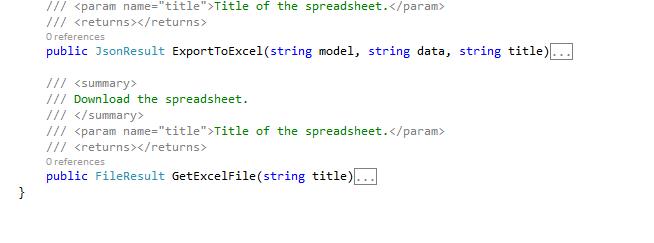
 4. Now insert the code to render the excel file (full code is found in the full working project attached at the bottom of this blog post)
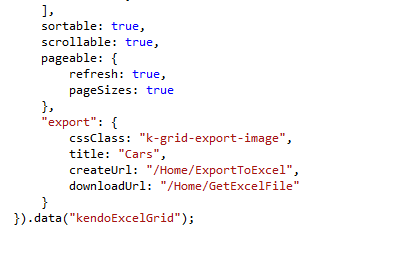
 5. Now in the View (Index.cshtml) insert two grids where you should note is disable odata and mention excel export (full code is found in the full working project attached at the bottom of this blog post)
// type: "odata",
Download Full Source code to display multiple Kendo UI MVC Grid in same View page using free version of Kendo UI
To do this I am not going to show how you are going to grab the data from the database but i will only display the controller code and the view code...
... 1. First of all include the .js and .css file in _Layout.cshtml page

1. First thing is to reference DocumentFormat.OpenXml.Packaging you can install it via NuGet Packages (right click on your solution and select Manage NuGet Packages and search for DocumentFomat.OpenXML and install it.

2. Next thing to note is you must return the view else if you just return the data then it will only display json result on the screen

3. Return json result for the data for two grids I have GetCars and GetOtherCars here in my code

// type: "odata",

Download Full Source code to display multiple Kendo UI MVC Grid in same View page using free version of Kendo UI
Read more!


 Posts
Posts


